Modules
Modules add features to your game server. A module is a package of:
- Commands: things players type in chat, like
/tpor/daily. - Hooks: code that runs when something happens, like a player joining.
- Cron jobs: code that runs on a schedule, like a message every 30 minutes.
- Shop actions: code that runs when a player buys a shop listing. See Shop.
Takaro ships a set of built-in modules, such as teleports, daily rewards and economy commands. Browse them, with every command and setting, in the module browser.
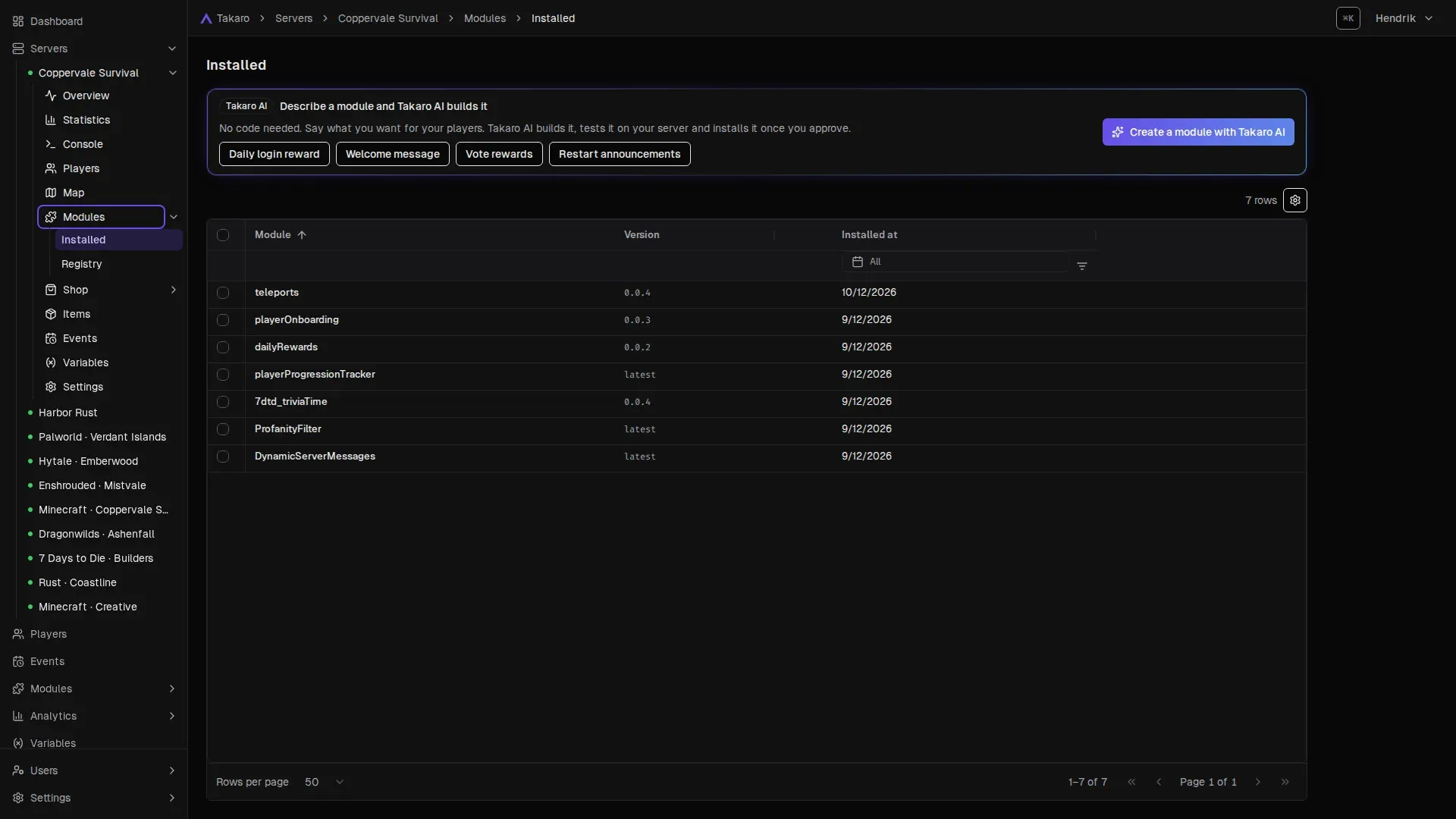
Where to find modules
Section titled “Where to find modules”There are two Modules pages in the dashboard:
| Page | Where | What it shows |
|---|---|---|
| Global Modules | Sidebar → Modules | Every module in your community. Registry lists all modules you can install. Installed lists every installation on every server. |
| Server Modules | Sidebar → your server → Modules | The same two tabs, scoped to one server. Use this to install, configure or remove modules on that server. |
In Registry, the Type column tells you if a module is Built-in (made by Takaro, read-only) or Custom (made in your community).
Install a module on a server
Section titled “Install a module on a server”- Open your server, then Modules → Registry.
- Find the module and click Install.
- Pick a Version. Takaro selects the newest numbered version for you.
- Fill in the settings (see below).
- Click Install.
The module starts working right away. You land on the installation page.
To install one module on several servers at once, open it from the global Modules page and click Install to server. Pick the servers, then fill in the settings once for all of them.
Fill in the settings
Section titled “Fill in the settings”The settings form has two parts:
- User Config: the module’s own options. For example the reward amount in dailyRewards or the welcome message in playerOnboarding.
- System Config: options Takaro adds to every module:
- enabled: turn the whole module on or off without uninstalling it.
- Per command: turn it on or off, a cost in currency, a cooldown in seconds, a delay, and extra aliases (other names players can type).
- Per hook: turn it on or off, a delay, and a cooldown per player, per server or for the whole community.
- Per cron job: turn it on or off and change its schedule.
- Per shop action: turn it on or off and choose when it runs (when the order is created, when it is claimed, or both).
Switch between Form and JSON at the top if you prefer to edit raw JSON.
Not sure what a setting does? Click Explain these settings on the install page. Takaro AI explains each setting in plain words and can suggest values. Nothing is installed until you press Install.
Give players permission
Section titled “Give players permission”Many modules have permissions, like TELEPORTS_USE or DAILY_CLAIM. A player can only use a command that needs a permission if one of their roles grants it.
- See a module’s permissions on its page in the global Modules list, under Permissions.
- Grant them in Roles. To let every player use a command, switch the permission on in the Player role. For some players only, make a role like VIP and give it to them. See Roles and permissions.
If a player types a command without the right permission, they get a chat message that names the missing permission.
Change settings later
Section titled “Change settings later”- Open your server, then Modules → Installed.
- Click Configure on the module.
- Change the settings and click Save.
The installation page also shows Runs / 24h, Failures / 24h and Success Rate / 24h, plus how many commands, hooks and cron jobs the module has. For cron jobs, Run now runs one right away without waiting for the schedule.
Turn a module off, or uninstall it
Section titled “Turn a module off, or uninstall it”In Modules → Installed:
- Turn it off: click Configure and switch off enabled in the System Config, then Save. The module stops running. Its configuration is kept. Switch enabled back on to turn it on again.
- Uninstall: open the installation and click Uninstall, or tick several modules and choose Uninstall in the bar that appears. The module is removed from the server. Its configuration is not kept.
Versions and updates
Section titled “Versions and updates”Each module has numbered versions. A server runs exactly the version you installed, so a change to the module never reaches your server by surprise.
To move a server to a newer version:
- Open the installation and switch to JSON. Copy the config so you can reuse it.
- Uninstall the module.
- Install it again and pick the new Version.
- Paste or re-enter your settings, then click Install.
Built-in modules get new versions when Takaro updates them. For your own modules, see below.
Build your own module
Section titled “Build your own module”You do not need to code to make a module.
- With Takaro AI: on the Modules page, use Describe a module and Takaro AI builds it. Say what you want for your players. Takaro AI asks a few questions, builds the module, tests it on your server and installs it. It asks for your approval along the way. See Takaro AI.
- By hand: click Create Module and write the code in the module editor. When it works, click Tag new version to freeze a version servers can install. See Custom modules.
Built-in modules are read-only. To change one, use Copy and edit with Takaro AI: Takaro AI makes an editable copy under a new name, and the original stays as it is.
You can also Export a module as a JSON file. To load it into another Takaro community, click Create Module there and choose Import JSON.
When a module doesn’t work
Section titled “When a module doesn’t work”See Debugging modules.