Players
A player is someone who plays on your game servers. Takaro builds one profile per player, even when they play on several of your servers or games.
Players are not the same as users. Users are the people who log in to the Takaro dashboard, like your admins and moderators. See Users and invites.
Takaro syncs player data from your servers every few seconds while players are online. Some events, like a player joining, update the data right away.
One player, many servers
Section titled “One player, many servers”Each player has:
- One global profile. Name, platform IDs (Steam, Epic, Xbox) and total playtime. It is the same on every server.
- One entry per server they joined. Playtime, currency, inventory, ping and last-seen time for that server only.
Example: a player who plays on your PvE and your PvP server has one profile and two server entries. Their currency on the PvE server is separate from their currency on the PvP server.
Find a player
Section titled “Find a player”There are two player lists.
| List | Where | Shows |
|---|---|---|
| All players | Players in the sidebar | Everyone, across every server |
| One server’s players | Servers → your server → Players | Only players who joined that server |
The global Players list
Section titled “The global Players list”Open Players in the sidebar.
- Search by name or Steam ID.
- Quick filters: Online, VAC banned, Has role and New this week.
- Columns: Online, Servers (with how many are online), Discord, Steam ID, Playtime, VAC, First seen and Updated. Hide or show columns from the view menu.
- Expand a row to see that player on each server: status, playtime, currency, ping, first seen, last seen and IP.
Click a player to open their profile.
A server’s Players list
Section titled “A server’s Players list”Open Servers, pick your server, then Players. This list shows server-only data such as Currency and Last seen. Search it by game ID. Quick filters are Online and Seen 24h.
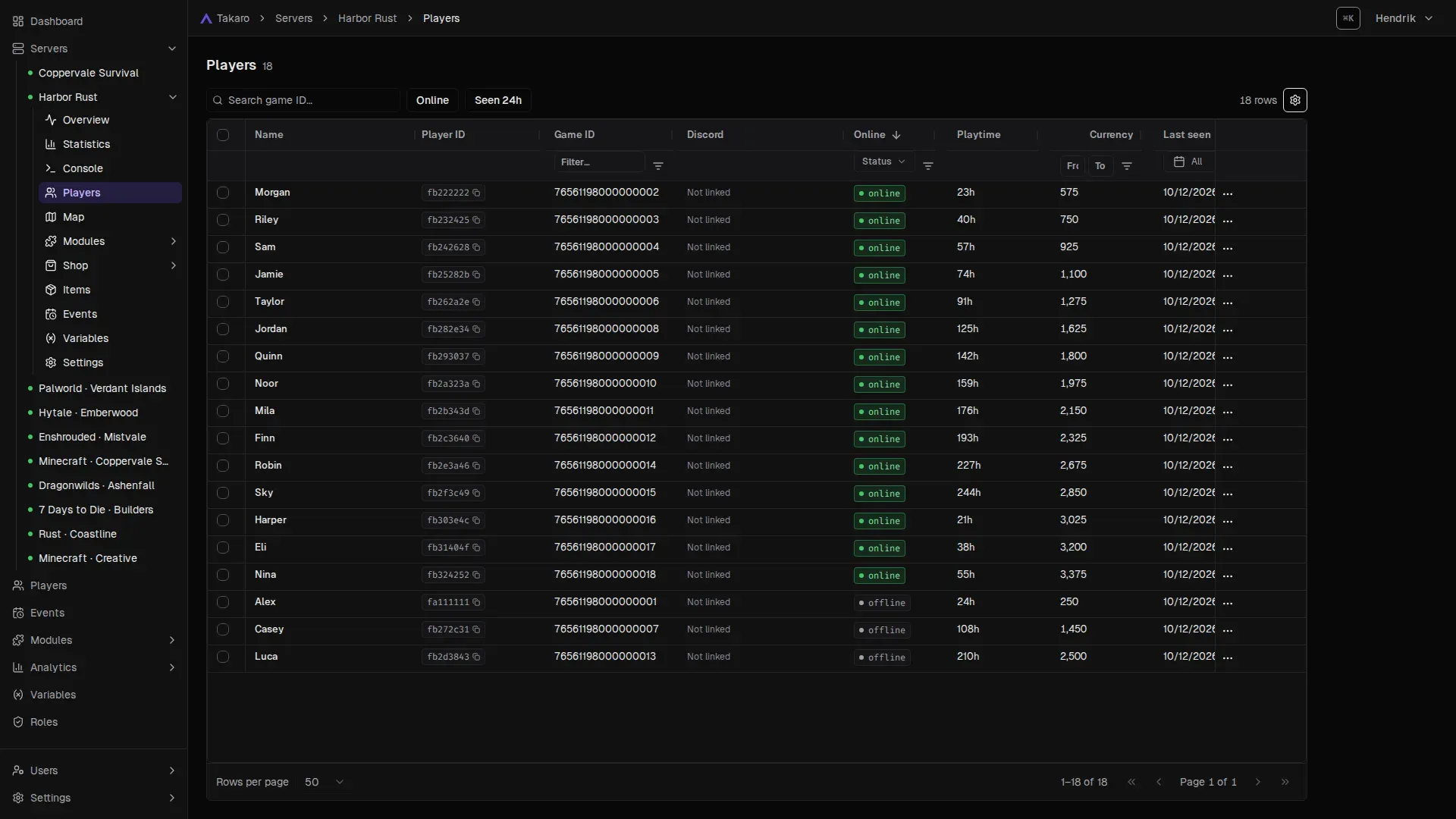
The row menu has actions that only make sense on one server:
- Whisper and Teleport (player must be online)
- Kick
- Give Items
- Add / Deduct Currency (needs economy turned on for the server, see Economy)
- Remove from this server
Ban and Assign Role are here too. See Bans and Give a player a role.
Teleport a player
Section titled “Teleport a player”Open the row menu and choose Teleport. The dialog starts at the player’s last position. Change X, Y or Z and choose Teleport.
Kick a player
Section titled “Kick a player”Open the row menu, choose Kick, fill in the Reason and choose Kick player. The player is dropped from the server and can join again.
Act on many players at once
Section titled “Act on many players at once”Tick the boxes on the left of either list. A bar appears with bulk actions:
- Global list: Ban, Assign Role, Delete players.
- Server list: Ban, Kick, Assign Role, Give Items, Add / Deduct Currency, Remove from this server.
Bulk Assign Role works on up to 1,000 players at a time on the global list, and up to 500 on a server’s list. On a server’s list, bulk Ban and Assign Role always apply to that server.
The player profile
Section titled “The player profile”Click any player to open their profile. The top shows their name, online status, and three numbers: Total playtime, Servers and Steam VAC bans.
Profile tabs
Section titled “Profile tabs”| Tab | What you see |
|---|---|
| Overview | A Takaro AI summary card, the Identity section (Steam ID, Epic ID, Xbox Live ID, First seen, Linked user) and Active servers with playtime per server |
| Events | What this player did, newest first. See Events |
| Bans | Every ban, global or per server, with reason and end date. Add ban is here. See Bans |
| Inventory | Their items per server. Inventory syncs while the player is online |
| Economy | Their balance per server, or “economy disabled” for servers without economy |
| Roles | Every role they have, with scope (one server or All servers) and expiry. Remove takes a role away |
Summarize a player with Takaro AI
Section titled “Summarize a player with Takaro AI”On the Overview tab, the Summarize with Takaro AI card looks at the last 7 days: playtime, servers, notable events and anything suspicious. Choose Summarize. You need the Read Events permission. See Takaro AI.
Profile actions
Section titled “Profile actions”The buttons at the top right of the profile:
| Button | What it does | Permission needed |
|---|---|---|
| Link user / Unlink | Connects this player to a Takaro login. See Link a player to a user | Manage Players and Manage Users |
| Assign role | Gives the player a role. See Give a player a role | Manage Players and Manage Roles |
| Ban | Bans the player. See Bans | Manage Players |
| Merge into… | Moves this player into another player | Manage Players |
| Delete player | Removes the player from every server, with their history | Manage Players |
Buttons you can’t use are greyed out. Hover them to see which permission is missing.
Merge two players
Section titled “Merge two players”Sometimes one person shows up as two players, for example after switching platforms. To join them:
- Open the profile of the player you want to remove.
- Choose Merge into….
- Under Merge into, pick the player to keep.
- Check the preview. On a server both played on, currency and playtime are added up.
- If both players are linked to a user, pick which user stays linked.
- Tick the box that says this cannot be undone, then choose Merge.
The first player is deleted. Everything they had moves to the player you kept.
Platform IDs
Section titled “Platform IDs”A player can have one or more of these IDs:
- Steam ID, for example
76561198123456789 - Epic ID (Epic Online Services)
- Xbox Live ID
- Platform ID, a general ID for other platforms, in the form
platform:id. For exampleminecraft:550e8400-e29b-41d4-a716-446655440000.
The game’s connector decides which IDs it sends. A player who plays on several platforms can have several IDs. You can search the global Players list by Steam ID.
Link a player to a user
Section titled “Link a player to a user”Linking connects a player (the person in game) to a user (a Takaro login). A linked player can sign in to your community’s Player Portal to see their balance and use the shop.
There are four ways a link is made. The profile shows which one under Link source:
| Link source | How it happens |
|---|---|
| In-game code | The player types /link in game and opens the link they get |
| Portal code | The player gets a code on the Player Portal and types /link <code> in game |
| Steam sign-in | The player connects Steam to their login. Takaro finds their player by Steam ID |
| Admin | An admin links them from the dashboard |
Share your Player Portal link
Section titled “Share your Player Portal link”Players link themselves on your community’s Player Portal. To get its address:
- Go to Settings → General.
- Find the Player Portal card.
- Choose Copy, then share the link on your website or Discord.
How players link themselves
Section titled “How players link themselves”With a code from the portal:
- The player opens your Player Portal link and signs in.
- The portal shows a link code. It expires in 10 minutes and works once.
- The player joins any of your servers and types
/link <code>. The portal has a Copy command button. - The portal updates by itself once the link is made.
From in game:
- The player types
/linkin game. - They open the link they get and sign in.
- They confirm Link player
to your account?
With Steam (no code):
Players who play through Steam can skip the code. They connect Steam to their Takaro login. If they have played on your servers with that Steam account, Takaro links their player automatically the next time they sign in.
Link a player yourself
Section titled “Link a player yourself”- Open the player’s profile.
- Choose Link user.
- Pick the User and choose Link.
If the player was already linked, the new link replaces the old one. If the user was linked to another player, that link ends. To remove a link, choose Unlink.
Give a player a role
Section titled “Give a player a role”- Open the player’s profile, or find them in a Players list.
- Choose Assign role.
- Pick a Role.
- Under Server scope, keep Global (all servers) or pick one server.
- Optional: set Expires for a temporary role. Leave it empty for a permanent one.
- Choose Assign role.
To remove a role, open the Roles tab on the profile and choose Remove. Read more in Roles and permissions.
Inventory and currency
Section titled “Inventory and currency”- Inventory: the Inventory tab shows what the player carries on each server. It syncs while the player is online.
- Currency: the Economy tab shows the balance per server. To change it, go to the server’s Players list and use Add / Deduct Currency.
- Give items: from the server’s Players list, use Give Items.
Currency only works on servers with economy turned on. See Economy.
Discord
Section titled “Discord”The Discord column shows a player’s Discord account when their linked user has connected Discord. Players connect Discord to their login under Account settings.
Linked Discord accounts let you sync roles between Discord and Takaro. See Roles and permissions and the Discord integration guide.