Roles and permissions
A role is a named set of permissions. You give roles to players and users. Takaro then checks those permissions before anyone does something.
- Player roles control what players can do in game, like using teleports or claiming a VIP reward.
- User roles control what your team can do in the dashboard and the API, like banning players or installing modules.
Permissions
Section titled “Permissions”There are two kinds of permission:
- Built-in permissions, such as Manage Players, Read Events or Manage Roles. They control the dashboard and the API.
- Module permissions. Each installed module can add its own. For example, a teleport module can have one permission to use teleports and one to set public teleports.
Some module permissions have a count, for example how many teleports a player may set.
The Roles page
Section titled “The Roles page”Open Roles in the sidebar.
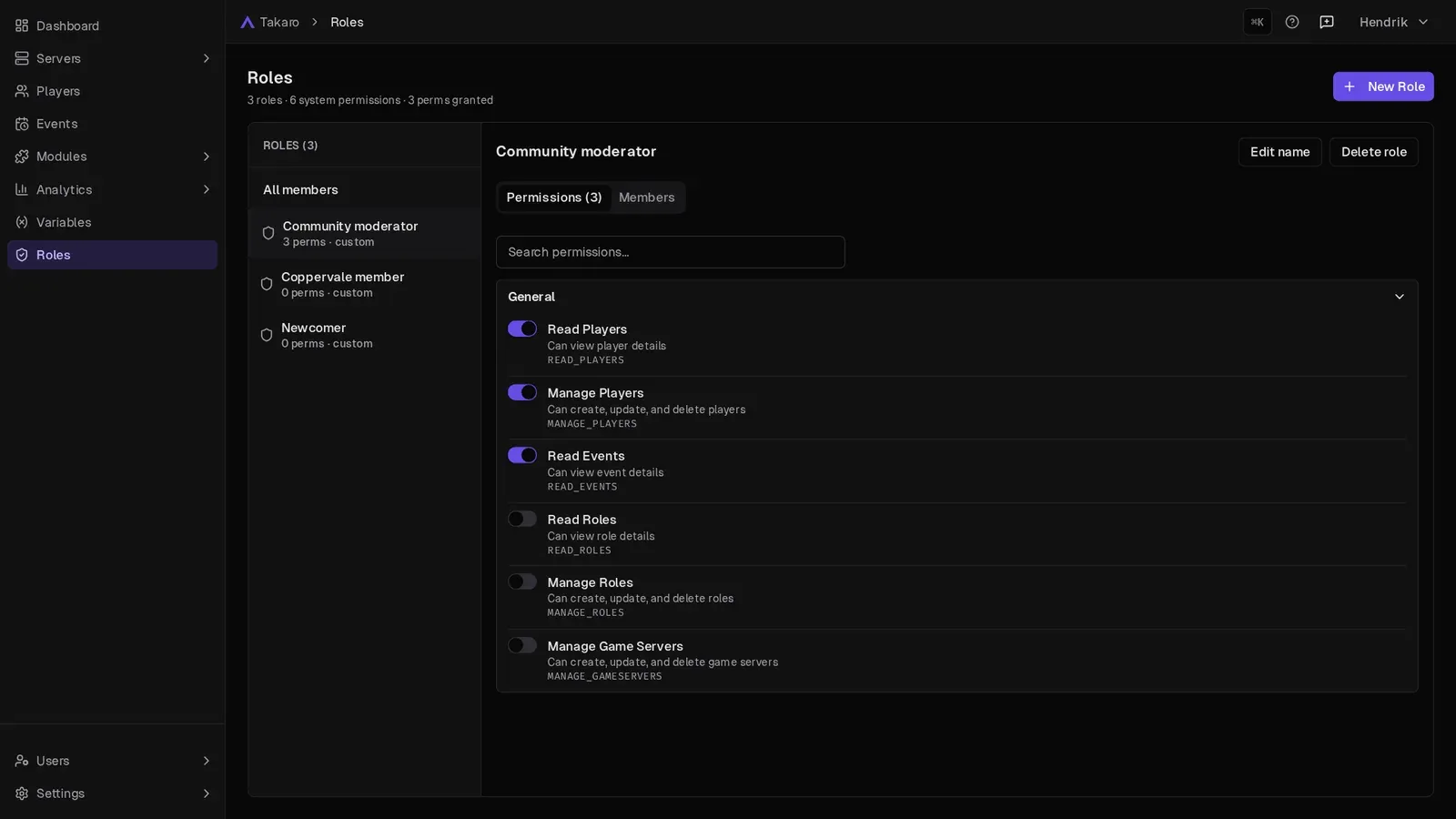
- The left side lists every role, marked system or custom.
- All members shows everyone who has any role: players and users, with Scope (Global or Per-server) and how many assignments they have.
- Click a role to open it. It has two tabs:
- Permissions: switch permissions on or off. Changes save right away. Permissions are grouped by module, and you can search them.
- Members: everyone with this role, with Scope, Granted date and Expires date.
Create a role
Section titled “Create a role”- On the Roles page, choose New Role.
- Enter a Name.
- Switch on the Permissions you want.
- Choose Create Role.
How many custom roles you can create depends on your plan. When you reach the limit, New Role is disabled.
Let Takaro AI suggest permissions
Section titled “Let Takaro AI suggest permissions”In the New Role form you can describe the role in plain words instead:
- Under Describe the role, write what it should and should not do. For example: “can kick players but not ban them”.
- Choose Suggest permissions.
- Check the Proposed permissions: what to add, remove or change.
- Choose Apply to form, then Create Role.
Nothing is saved until you choose Create Role. Takaro AI never proposes full access (Root), and it leaves out permissions you don’t have yourself. See Takaro AI.
Rename or delete a role
Section titled “Rename or delete a role”Open the role and use Edit name or Delete role. System roles can’t be renamed or deleted.
Give a role
Section titled “Give a role”You can give a role from several places:
- A player’s profile: Assign role. See Players.
- A Players list: the row menu or the bulk bar, Assign Role.
- Users → All users: Assign role. See Users and invites.
- An invite link can give roles when someone joins.
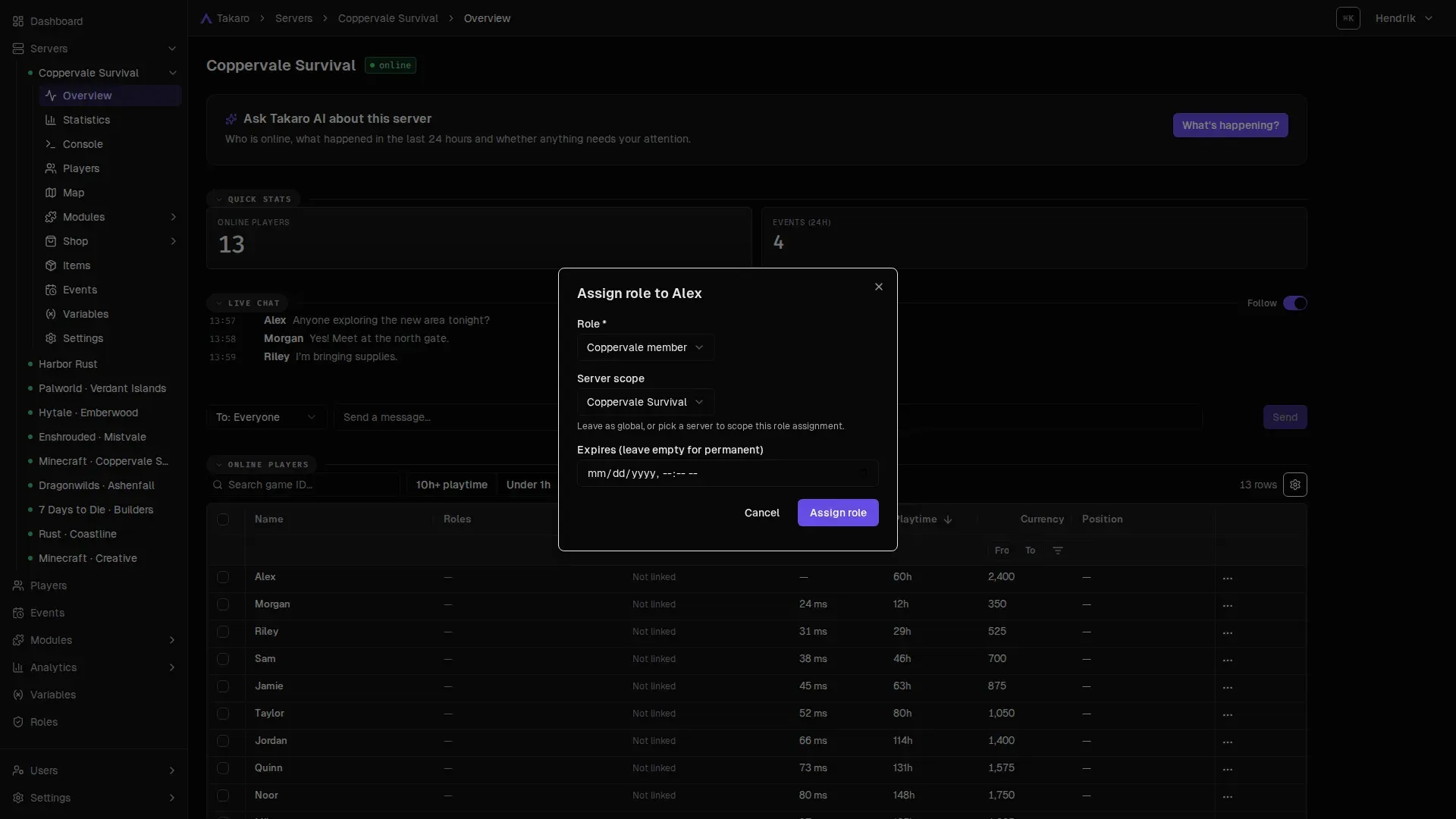
From a server’s Players list it looks like this:
Global or one server
Section titled “Global or one server”When you give a player a role, Server scope decides where it counts:
- Global (all servers): the role counts on every game server.
- One server: pick a server. The role counts only there.
Roles add up. A player’s permissions are all their global roles plus their roles on the server they are on.
Example:
- A player has a global role that allows using teleports.
- On Server A they also have a role that allows setting teleports.
They can use teleports everywhere, but set them only on Server A.
Temporary roles
Section titled “Temporary roles”Set Expires when you give a role. Leave it empty for a permanent role. The role ends by itself on that date. Use this for things like a month of VIP.
Remove a role
Section titled “Remove a role”- From a player: open their profile, Roles tab, Remove.
- From the Roles page: open the role, Members tab, use the row menu.
System roles
Section titled “System roles”Takaro creates three roles for every community. They have special meaning.
| Role | What it is |
|---|---|
| root | Has every permission. You can’t change or delete it. Don’t give it out |
| User | Every user has it |
| Player | Every player has it |
None of them can be renamed or deleted. root is fully read-only. You can change the permissions of Player and User: switch a permission on in Player and every player gets it, for example to let everyone use a module’s commands.
Command permissions
Section titled “Command permissions”A module command can require permissions. Before running it, Takaro checks the player has all of them.
- A player without them gets a chat message such as: “You need the ‘Economy Utils Manage Currency’ permission to use this command. Please contact an admin if you need access.”
- Takaro records a
command-execution-deniedevent, so you can see it on the Events page. - Players with the Root permission can run any command.
Example: in the economyUtils module, anyone can use /balance, but /grantcurrency and /revokecurrency need the ECONOMY_UTILS_MANAGE_CURRENCY permission.
Discord role sync
Section titled “Discord role sync”You can keep Takaro roles and Discord roles in sync. Change a role in one place and it updates in the other.
You need:
- The Takaro bot in your Discord server, with permission to manage roles.
- Players and users who connected their Discord account to their Takaro login.
Link a role to a Discord role
Section titled “Link a role to a Discord role”- Open the role on the Roles page.
- Choose Edit name.
- Pick the Discord server, then the Linked Discord Role ID from the list. You can also choose Enter an ID manually.
- Choose Save.
If your plan doesn’t include Discord role linking, the dialog tells you.
Turn sync on
Section titled “Turn sync on”- Go to Settings → General and open the Discord section.
- Turn on Discord Role Sync Enabled.
- Under Discord Role Sync Prefer Discord, choose which side wins:
- Takaro wins: Takaro roles overwrite Discord roles.
- Discord wins: Discord roles overwrite Takaro roles.
Only linked roles sync. System roles (root, User, Player) never sync.
For the full setup, see the Discord integration guide.